
Using the viewer
Open a bundle with ?d=<url> or, when a registry is configured, ?d=<id>. Everything you change ends up in the URL, so the address bar is always a shareable description of what you are looking at.
Layout
The spatial view holds every section as a grid or a strip, at true physical scale, under one set of settings. If the dataset has embeddings (snRNA-seq UMAPs), they render in a second embedding view beside it; drag the divider to resize, use the swap button or the top bar to put it left or right, or turn it off.
| Action | How |
|---|---|
| Focus one sample | double-click it, or the ⤡ button in the sample list |
| Step through samples | ← → (or PageUp PageDown) |
| Back to all samples | Esc, or "show all" |
| Fit to view | f |
| Hide a sample from the layout | its checkbox in the sample list |
| Show one platform | the top bar: All / Visium / Xenium …; shift-click toggles |
| Grid vs strip | Display → Grid / Strip |
| Cluster names on the embedding | Display → label clusters in the embedding |
| Compare groups side by side | the top bar: split by → a sample metadata key |
Panes: comparing groups side by side
When the dataset's samples carry metadata (meta: in the yaml: condition, sex, genotype, ...), the top bar offers split by. Choosing a key divides the tissue canvas into one pane per level, control on one side and stress on the other, a third pane for a third level; with more levels than panes, each pane's header has a select to choose which group it shows. Every pane has its own camera, scale bar and caption ("control · 2 sections"), and the one the pointer last touched is underlined: ← →, Esc and double-click work inside it. Colour, filters, the legend, point size, images, the lasso and regions stay shared, exactly as they are between the tissue and the embedding today; hover rows show the section's metadata.
match scale, on by default, keeps every pane at the same microns per pixel: zoom in one and the others follow in scale while each keeps its own centre, so two sections can be read side by side at equal size. One click releases it; f fits every pane again. Drag the handles between panes to resize them (double-click a handle to equalise); under about 900 px of width the panes stack vertically. Sections that have no value for the key are not drawn while the canvas is split, and the top bar says how many. The split, the groups shown, the handle positions and each pane's camera travel in the URL, so a copied link reopens the same comparison.
Color by
- Gene: type to search. Values are log-normalized expression; the range slider rescales the colormap, "hide zeros" removes non-expressing cells.
- Feature groups: non-gene features such as RCTD cell type weights appear under their own tab with a scrollable list.
- Gene sets: two gene sets, one gene or fifty each. Each set's score is the mean normalized expression of its genes; the two scores index a 2D color table. Schemes: yellow / blue → green, cyan / magenta → white, red / green → yellow. The legend becomes a color square.
- Annotation: any categorical or continuous field. Categorical legends show counts; click a category to hide it, double-click to solo it. Fields that only some samples carry are grouped separately in the menu.
Samples that don't carry the selected feature are drawn in grey ("not measured") rather than hidden.
Filter by
Independent of coloring: keep cells whose gene expression or continuous value falls in a range (with a live histogram), or cells in chosen categories of an annotation. The map, counts and dot plot all respect it. The URL carries it as fl=.
What a filter and the numbers around it count: a cell is shown when its section is on screen, its category is not hidden in the legend, it passes the filter, and (with hide zeros on) it expresses the gene on screen. Hover and the lasso see only shown cells, so a selection never contains a cell you could not see. The legend counts cells of each category among the sections on screen that pass the filter (a category you hid keeps its count); the dot plot and the filter panel's shown line use the same population. A gene filter is set on one scale across sections, the largest per-section maximum, like the colour scale, so the same expression value passes everywhere; with scale each sample to its own max it is per section. A section that does not measure the filter's gene or annotation shows no cells while the filter is on, and the panel says how many cells that hides.
Expression by annotation
When coloring by a gene, this panel shows mean expression and percent expressing per category of any annotation across the visible samples, with a per-sample heatmap toggle. Clicking a row filters the map to that category; several rows combine.
Hover
The tooltip lists the current gene's value, the filter gene's value if different, every categorical annotation of the cell with its swatch, and the cell id.
Lasso
Press L or the ⌒ lasso button, drag around a region, release. Selected cells get a white ring and the Selection panel shows counts per sample, the composition of every annotation, and the current gene's mean and percent expressing in the selection next to the same numbers over all cells of the sections the selection touches (shown as "vs … overall"). "export CSV" downloads sample,cell_id rows. Esc clears.
Gene color scale
Gene colors share one scale across all samples on screen, so the same color means the same log-normalized value in every section; the legend shows the numeric range. Every number the viewer shows for a gene (legend range, hover value, selection mean, dot plot, filter histogram) is reconstructed from the bundle's 8-bit storage, where each gene is kept as 256 levels between its minimum and maximum in that sample, so they are display summaries good to about 0.4% of a gene's range, not the values in your object; compute statistics on the object, with s.selection() from a notebook if the selection came from the viewer. Tick scale each sample to its own max to stretch every section to its own maximum instead, which brings out structure in low-count platforms at the cost of comparability: the legend then reads in fractions of each sample's range, and a gene filter's threshold becomes a fraction of each sample's own maximum rather than one expression level. The two gene sets of Gene sets mode are scored as the mean log-normalized expression of their genes, scaled against the largest selected gene maximum across samples, or within each sample when per-sample scaling is on.
Sharing and export
copy link in the panel header copies a URL that reproduces the whole view: dataset, coloring, filters, hidden categories, camera, split and point sizes. From spatialscape serve that URL points at 127.0.0.1 and opens only on your computer (the button says "copied · local link"); links to send around come from a published site. PNG downloads the current frame at screen resolution (2× on high-density displays) with the legend and scale bar drawn in. Press ? for the list of keyboard and mouse shortcuts.
Point size
The slider at the bottom left of each pane multiplies the point radius, from a quarter to four times the platform's default (Visium spots at their true 55 µm, cells at 5 µm). The tissue canvas and the embedding each have their own value. When the canvas is split by a group, every pane has its own slider too: a dense section and a sparse one can be read side by side at different sizes, and a double-click on a group pane's slider makes it follow the shared value again. The values travel in the URL (ps, pse, psg).
Regions: your own annotation
The Regions panel turns the lasso into an annotation tool. Add a group, then lasso as many areas as you like, in any section or in the embedding; each lasso becomes a translucent polygon in the group's colour, labelled, and stays attached to its section through layout changes. Add the next group and keep going; click a group (or press 1–9) to draw into it, Backspace removes the last area, Esc stops drawing. Where lassos overlap, the last one drawn wins. Double-click a name to rename it; the swatch changes the colour.
The groups are a live annotation called Regions: colour the cells by it, and the legend shows the counts per region (plus "unassigned", which you can hide), hover rows name the region, the dot plot can be grouped by it and filters can use it. export CSV writes sample, cell_id, region for every cell inside a region; save writes the drawing itself (groups and polygons) as JSON and load brings it back, including onto a rebuilt bundle, since polygons are stored in each section's own coordinates. In a notebook, s.regions() returns the same table as a pandas Series aligned with your object (In a notebook).
Compare panel: a test's results next to the tissue
When the dataset carries comparisons, the side panel has a Comparisons group, one row per comparison. Choosing one splits the canvas by its groups (unless you had split by another key), filters the map to the population the test was fit in when the comparison names one (a chip in the panel header says so and clears it), and opens a panel under the maps:
- The matrix, left: one row per gene, one column per level (every cluster of a marker table, every cell type a contrast was fit in, or the one column of a plain two-group result), each cell the log2 fold change tinted by sign and size (hover for padj, % in / out and rank; blank where a filtered table has no row). Click a column head to focus that level and sort by it (again to flip), the box to find a gene. Clicking a row colours every pane by that gene;
↑and↓step through the table as sorted. Genes no section measures stay listed, greyed, with a count in the header. - The distribution, right, for the gene on screen. When the levels are an annotation's categories (a marker table, a per-cell-type contrast): violins of the gene's expression per category, drawn from the same per-cell values the maps use, the focused level in full colour with a tick at each median. When the comparison carries pseudobulk values: one dot per mouse or donor in the comparison's group order and colours, a median line per group, quartile boxes on request (box), and a line joining a subject that appears in several groups (a paired design); hovering a dot names the replicate, its value and its sections, clicking it focuses its first section. Under the plot: the table's numbers for that gene in the focused level and the comparison's description, verbatim.
The focused level travels as cmp=<id>:<level> in the URL. For a markers comparison the map is not filtered (the question is whether the gene is specific, which the whole tissue answers); only Astro filters it to the focused cluster on request and follows the focus; each legend row of the matching annotation shows a markers button on hover that opens the table focused on that cluster. The violins and the expression by annotation dot plot in the Cells group read the same field, so the two agree.
Nothing in the panel is computed by the viewer: the effects, p-values and replicate values are the ones the tables held, and the dots are the values you fitted, not a re-aggregation of the 8-bit expression the maps are drawn from. The chosen comparison travels in the URL as cmp; closing the panel with × leaves the split and the filter as they are.
Genome panel
An ATAC sample built with tracks: (Genome tracks) adds a genome panel under the maps, drawn by the same renderer as the maps: scroll to zoom around the cursor, drag to pan, double-click to zoom in, and drag the panel's top edge to resize it. From top to bottom it shows the coordinate axis, one accessibility track per visible category of the annotation you last colored by (in the vocabulary's colors, on one shared scale printed in the header and set by the highest value in view, drawn through a rolling mean the header lets you set from raw bins to 1 kb, so hiding a category in the legend removes its track), the sample's peaks, and gene models with exons and strand arrows. Coloring by a gene keeps the per-category tracks, so a locus reads per cell type.
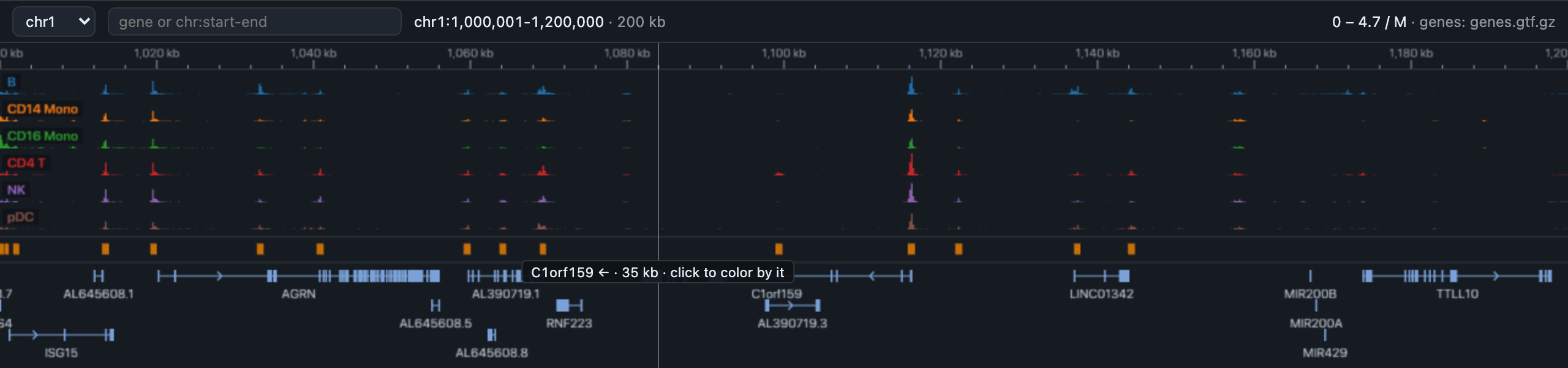
The locus follows what you color by: a gene (with room around it), a gene's activity score, or a peak (plus or minus 10 kb), and a band marks it. The search box takes a gene name, completed from the genome's gene models, or a locus such as chr11:60,405,808-60,512,181; the chromosome menu shows a whole chromosome. Hovering shows the position and the value of the track under the cursor; clicking a gene colors the maps by its expression (or its activity score when the sample has no RNA), clicking a peak colors them by that peak's accessibility. The locus travels in the URL as gl; the genome switch in the top bar hides the panel (gb=0).
Features that take negative values (module scores, motif deviations) are stored symmetrically around zero and drawn with a diverging colormap centred on zero, whatever the colormap setting; the legend shows the real minimum and maximum.
When an embedding is colored by an annotation, each category's name floats at the centre of its cells, largest clusters first and never overlapping; hidden categories lose their label. Turn it off under Display (cl=0 in the URL).
Each view has its own point-size slider at its bottom-left corner: one for the tissue sections, one for the embedding, so dense UMAPs and sparse Visium spots can be tuned independently. Double-click a slider to reset it. The values travel in the URL as ps (spatial) and pse (embedding).
Images and cell shapes (details)
H&E or fluorescence pyramids render under the points with an opacity slider. A fluorescence image with several channels (Xenium morphology: DAPI, the boundary stain, 18S, alphaSMA/Vimentin) also lists its channels under the slider, like the legend: click a channel to switch it off or on, double-click to show it alone. At most six draw at once, which is what a GPU blends in one pass and about what the eye can read; with a larger panel the list says how many are on, a seventh click does nothing until one is switched off, and only the channels on screen are fetched. Channels are matched by name, so one switch covers every sample, and switching costs no download. To see the image under dense points, hide the categories in the legend or lower the point size.
When the bundle has cell boundaries, cells turn from dots into their shapes once a cell is about 6 px across. Draw cells as in the Cells group chooses how: filled, in the cell's colour with a darker edge (the default when no image is drawn), outlined, in the cell's colour over the image (the default when one is), or dots to keep the dots. Shapes follow everything the dots do: the gene or annotation colour, blends, filters and hidden categories, with no extra download when the colour changes. Only the tiles in view are fetched, once the camera stops moving; while they arrive the dots stay. When a view holds more than about 40,000 cells the status line says zoom in for cell shapes. The choice travels in the URL as cs.
The side panel
The panel is five groups, each a bar that opens its controls; closed bars show a one-line summary, several can be open at once, and what is open is remembered per browser:
- Image: its switch in the bar, opacity and, for fluorescence, the channel list.
- Cells: its switch in the bar (off leaves the image and the transcripts alone on the canvas), colour by (gene, cell type weights, gene sets, annotation), the legend, expression by annotation, the filter, and Drawing: how cells draw once zoomed in (dots, filled, outlined), cluster labels.
- Transcripts: its switch in the bar, selected genes or all genes, the pinned genes with their colours, the point size.
- Comparisons (when the dataset carries any): its switch in the bar opens or closes the panel under the maps; one row per comparison, the active one with its level (a cluster, a cell type).
- ROIs: the lasso's selection and your drawn regions.
- Samples: comparisons, the grid or strip layout, focus and the list of sections.
The groups are what is drawn, not how; a Transcripts bar reading "GAD1 · 2 pinned" tells you what the molecules show without opening it.
Comparing segmentations
When a bundle carries another segmentation of a section (Xenium's nucleus boundaries are picked up automatically next to the cell boundaries; others come from segmentations: in the yaml), Compare with in the Cells group draws it as dashed amber edges over the cells, the image and the molecules once zoomed in, and shows a small table, cells and median area, for the focused section (or every section) against the cells' own shapes. The choice travels in the URL as ov.
Molecules
When a bundle carries molecules (Xenium transcripts, from molecules: in the yaml), the Transcripts group draws them once a view holds at most about one per screen pixel, counted from the tiles in view (about a million in a large window, which keeps a laptop near 60 frames per second; every molecule of a view is drawn, none are sampled). Until then the status line says zoom in for molecules. A size slider in the group scales the points (double-click to reset; msz in the URL). Selected genes colours the genes you have chosen: the gene you are looking at draws in the colormap's top colour, the two gene sets in their colours, and under an annotation every molecule draws in grey, which is the view for judging a segmentation.
Zoomed out, a cell can show one gene; zoomed in, the molecules can show several. The Transcripts group lists the gene on screen and lets you pin more, each in a fixed colour, with a search box; a pin stays while you step through other genes, so a few anchors remain visible, and click × to unpin. All genes colours every gene by its own hue at once, the view for seeing where transcripts of different kinds gather; pins and the gene on screen keep their colours on top of it (mc=all in the URL). Molecules not assigned to a cell draw dimmer, and the cell dots fade under them. Only the tiles in view are fetched, once the camera stops; pinning and unpinning download nothing. Click a pinned gene's colour square to choose another colour for it. The switch, the pins and their chosen colours travel in the URL as mol=1 and mg.
Sharing a view
Copy the URL. It encodes the dataset, the focused sample, color and filter settings, hidden categories, split layout and camera. See URL parameters for the keys.